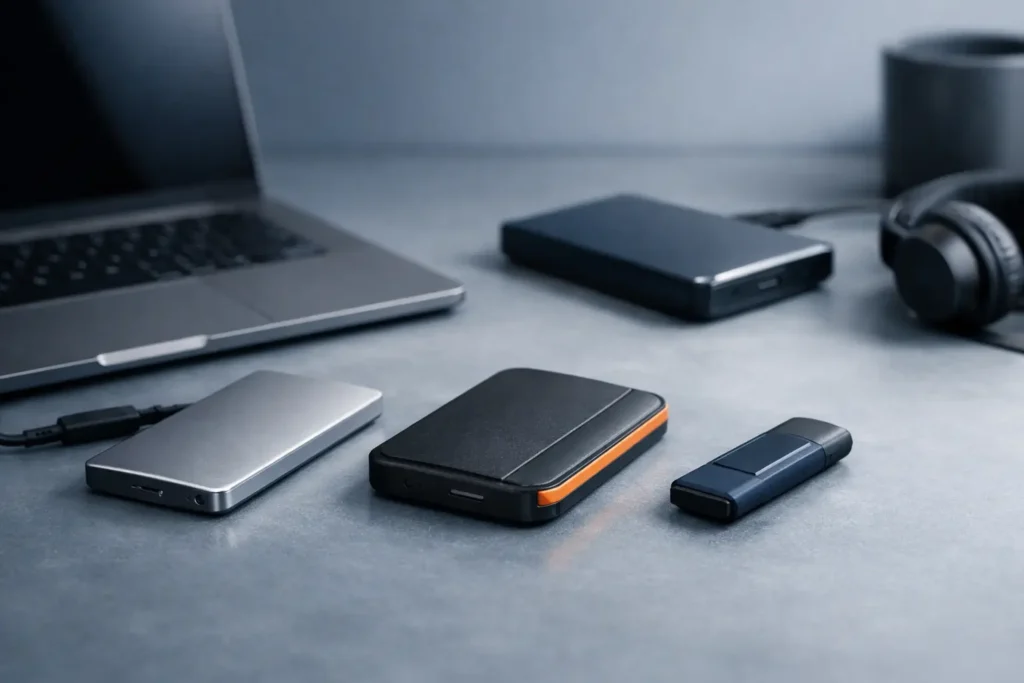
A laptop with 256 GB fills faster than most people expect. Portable storage gives photos, video, work files, and device backups a separate place to live without requiring a new computer.
The right choice depends on the files you carry, the devices you use, and how often the drive travels. Capacity matters, but connection type, sustained speed, physical durability, and file compatibility determine whether a drive feels useful every day.
What is portable storage used for?
Portable storage is an external device that holds files outside your phone, tablet, or computer. It connects through a cable, card reader, or wireless connection, although wired drives remain the simplest option for large files.
For most buyers, it serves one of three jobs. It creates a local backup of important files, expands a device with limited internal space, or makes a working library easy to move between devices. A photographer may carry original images. A student may keep projects and media files. A professional may need a current archive that is separate from a work laptop.
It is not the same as a cloud backup. Cloud services can keep a copy available remotely, while a portable drive gives you direct access without depending on an internet connection. The practical approach for irreplaceable files is to use both: one local copy on a drive and one separate copy in the cloud or another physical location.
Should you choose a portable SSD or hard drive?
A portable SSD is the better everyday choice for most people. It is smaller, faster, quieter, and more resistant to bumps because it has no moving parts. A portable hard drive usually offers more capacity for the money, but it is less suited to frequent travel.
An SSD is especially worthwhile if you edit video, transfer large camera files, work from the drive, or carry it in a bag each day. Many compact SSDs can copy a large folder in minutes rather than hours, provided the computer and cable support the drive’s full speed. They also make less noise and generate less heat during ordinary transfers.
A hard disk drive, often called an HDD, still has a place for large archives. If the priority is storing several years of photos, completed video projects, or household backups that mostly stay at home, a higher-capacity HDD can be a sensible purchase. Keep it in a protective case and avoid moving it while it is reading or writing files.
The trade-off is simple. Buy an SSD for speed, mobility, and frequent use. Buy an HDD when maximum capacity on a tighter budget matters more than portability in the literal sense.
How much portable storage do you need?
Choose capacity based on your next two years of use, not only what is on your device now. Drives that begin nearly full are harder to organize, slower to back up, and more likely to leave important files in multiple places.
For documents, PDFs, presentations, and a moderate photo library, 500 GB or 1 TB is usually enough. For a laptop backup plus regular phone photos, 1 TB provides more comfortable room. For 4K video, RAW photography, game libraries, or multi-device backups, start at 2 TB and assess your file growth before choosing a smaller drive.
Usable capacity will be slightly lower than the number on the box because devices measure storage differently and reserve a small amount for formatting. That is normal. More useful than focusing on the exact remaining figure is setting a rule: keep at least 15% to 20% of the drive free for easier file management and future backups.
Which port and cable should you look for?
USB-C is the most flexible connection for current laptops, tablets, and many phones. But the connector shape alone does not indicate speed. Two USB-C ports can look identical while supporting very different transfer rates.
Before buying, check the port on the device you will use most. A drive marketed with USB 3.2, USB4, or Thunderbolt capability may perform well, but only when connected to a compatible port with a suitable cable. When the computer supports a slower standard, the drive will still work in many cases, just at the lower speed.
Consider the cable as part of the purchase. A short USB-C to USB-C cable is common, while some older computers need USB-A. Adapters can solve a connection mismatch, but they can be inconvenient and may limit performance. If you need to move files between a newer tablet and an older desktop, choose a drive with the required cable included or plan for a reputable adapter.
Phones and tablets add another check. Some devices can browse files from an external drive but cannot provide enough power for every model. Compact SSDs tend to be easier in this situation than larger desktop-style drives. Confirm that your specific device supports external storage before treating a drive as a phone backup solution.
What transfer speed is actually useful?
For ordinary documents and backups, almost any current external drive is fast enough. Speed becomes noticeable when each project contains tens or hundreds of gigabytes.
A rated read speed describes how quickly a drive can open or copy data from the drive. A write speed describes how quickly it can save data onto the drive. Both matter, but sustained write speed is often more relevant for camera footage, large backups, and long file transfers. Some drives reach an impressive peak speed briefly, then slow down during extended work.
Do not pay for the highest-rated speed if your workflow does not use it. A 1 TB SSD with reliable performance and the right connection may be a better fit than a faster model whose capabilities your laptop cannot use. On the other hand, editors working with large video files may benefit from a faster SSD because project files, previews, and exports create repeated transfers throughout the day.
Will the drive work with Mac, Windows, and mobile devices?
Most portable drives work with both Mac and Windows, but their file format can affect what each device can write to. This is worth checking before copying your entire library.
exFAT is often the practical format for a drive shared between current Mac and Windows computers. It supports large files and is broadly compatible with modern devices. APFS is designed for Apple systems, while NTFS is common on Windows. Those formats can be useful when a drive stays with one operating system, but sharing can require additional software or read-only access on another device.
Formatting a drive erases its contents. Set the format before loading it with important files, and keep a second copy during the process. If the drive arrives preformatted, do not assume that format is ideal for your setup.
How should you protect files on a portable drive?
A portable drive can be lost, damaged, or misplaced. Treat it as a copy of your files, not their only home.
Start with a simple folder structure. Separate personal photos, work documents, device backups, and archives. Use dates and clear project names rather than folders labeled “new,” “final,” or “miscellaneous.” Those names become difficult to understand after a few months.
For sensitive material, use built-in device encryption where available or encrypted folders with a password manager storing the recovery information. Encryption protects the contents if the physical drive is lost, but it also means an unrecoverable password can make the files inaccessible.
Physical care matters too. Eject the drive before disconnecting it, particularly after a large transfer. Keep cables from pulling against the port. Avoid extreme heat, moisture, and leaving a drive loose in a car or travel bag. An SSD tolerates daily movement better than an HDD, but neither is immune to damage.
What should you check before buying portable storage?
Check the capacity, connection, included cable, and compatibility with your main device. Then consider whether the drive will be an active workspace, a travel companion, or an archive that stays in one place.
Also look at the stated dimensions and weight. A drive that fits in a pocket is easier to carry, while a slightly larger model may offer more capacity or better cooling. If you plan to store camera footage or important work, review the manufacturer’s stated operating requirements and keep a second backup from the first day.
The most useful portable drive is not necessarily the largest or fastest one. It is the one you can connect without an adapter hunt, organize without confusion, and back up often enough that losing a laptop does not mean losing your work.
